CYBERSECURITY PORTAL
HOW TO JOIN THE PILOT TESTING
[[missing text]]
Dear guests, welcome to this portal! Here you will find educational tools developed within the Erasmus+ project “Cybersecurity for the Future (CYB-FUT)”.
We would like to cordially invite you to their pilot testing, which is currently underway.
We offer you theoretical learning modules (LM) and online laboratories (OL). As part of the pilot testing, you can try LM, OL, or both. In the case of LM it is very simple – no registration or reservation is required. When it comes to OL, the situation is slightly more complicated – due to demands on hardware resources, a reservation for a specific time for the entire group of students is required; nevertheless, the process is easy and it is explained in detail hereinafter.
What do we need from you? In order to meet the stated qualitative and quantitative goals of the project, we will have to report a sufficient number (in the order of hundreds) of pilot testing participants – secondary school students who will use some of our LMs or OLs. Therefore, we kindly ask teachers to provide a list of involved students (the attendance form can be downloaded in DOCX in Czech, Slovak, Spanish and English), sending it by e-mail to cybfut@fel.cvut.cz.
We apologize in advance for any errors and shortcomings you may encounter during the pilot testing – however, that is one of its main purposes, and we will be grateful if you share your recent experiences and insights with us via the online evaluation questionnaire:
Thank you, and enjoy!
Theoretical learning modules in several language versions are available online at https://techpedia.eu/cybfut/ (freely, without any restriction). In the pilot phase, the learning modules are tested by teachers, choosing the topics they are interested in. These topics (which may be any part of any module, or several parts of different modules – it does not have to be a complete material) shall be used in their regular classes. Then the teachers are kindly asked to fill out the online evaluation questionnaire and to provide a list of involved students (see above).
The online laboratory tasks can be freely accessed from https://cybersecurityportal.eu/, but due to their nature, the instructions below should be followed.
Preparatory Phase
Implementation Phase
Evaluation Phase
Teachers are kindly asked to fill out the online evaluation questionnaire and to provide a list of involved students (see above).
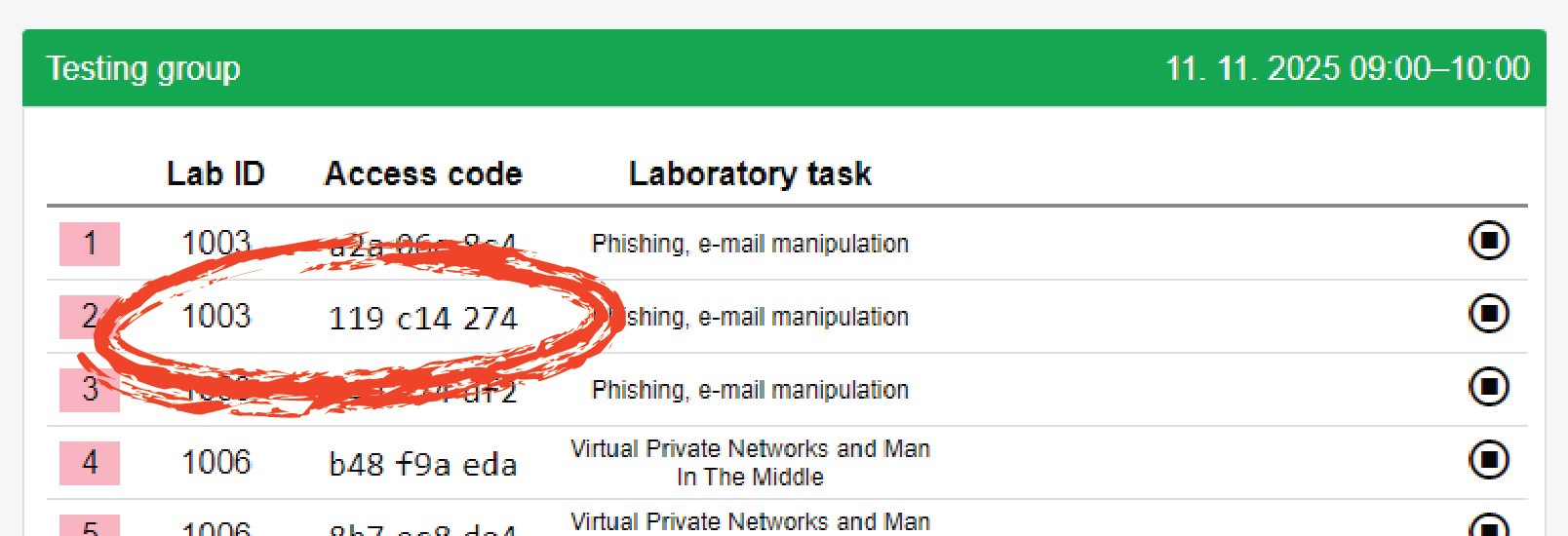
The hardware resources on which laboratory tasks are run have their limits, and it is necessary to manage their fair sharing among users. The reservation system ensures distribution of these shared resources so that from the user’s point of view it is possible to perform the planned laboratory task in a given time. To make a reservation, you need to be a registered user. A registered user is typically a teacher. Registration is not required to work with the laboratory task itself (typically for students). Laboratory tasks are accessible to users via an Access Code and a laboratory task code. This individual access code is automatically generated in the reservation system for each virtual workplace.
The basic element of the reservation is the so-called “group”, which brings together various laboratory tasks carried out at the same time. The group determines the time and period when it is possible for students to work with the tasks (tasks are made available to users). All tasks within one group are thus carried out at the same time. In one group, it is possible to reserve x user workplaces (i.e. make a task available to x students, for example). A group can consist of different tasks.
The groups have their limitations:
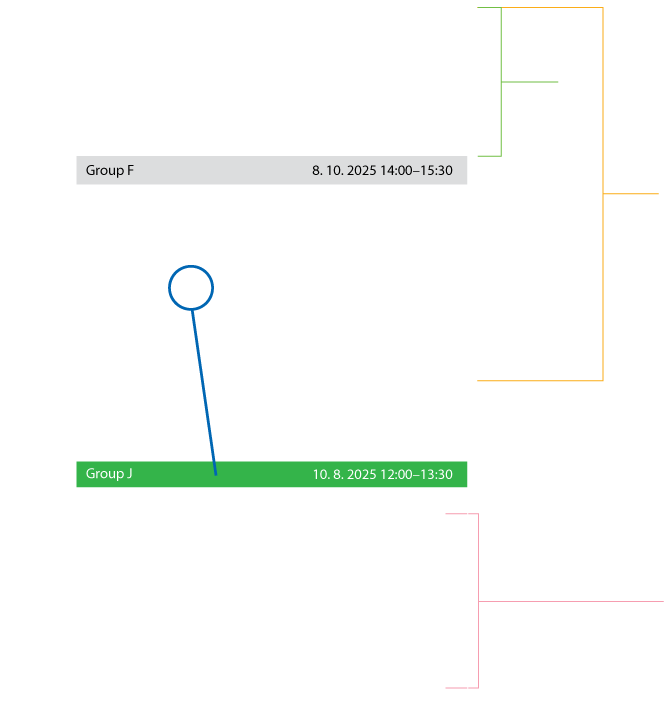
Other restrictive conditions for reservations are as follows:
Please do not make unnecessary reservations, as this will limit other users. The system evaluates the usage of reservations and continuously adjusts the above restrictions for a given user. For example, if a user makes repeated unused reservations, their options for further reservations will be limited.
Access to the reservation system
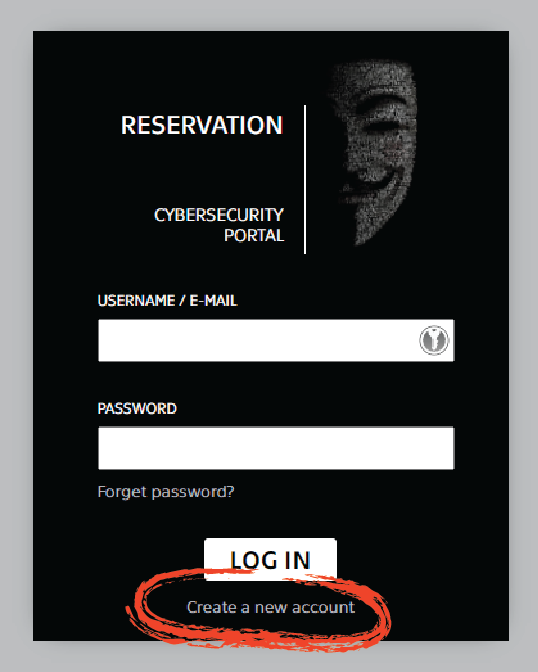
Access to the reservation system is provided via a web application on the website https://cybersecurityportal.eu in the “SCHEDULE A LAB” section.
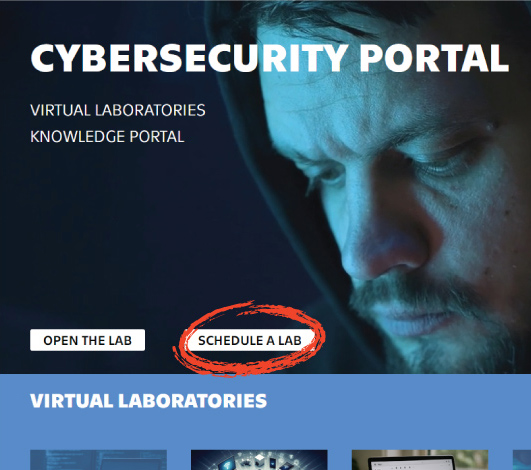
Registering a new user (typically a teacher), first step:
User registration in the reservation system (registration is only required to make reservations), second step:
After completing the registration, a confirmation link is sent to the e-mail address provided.
Reservations management
After logging into the reservation system, its user has the following options: Manage groups, Add a new reservation, View task progress log, Edit profile, and Log out.
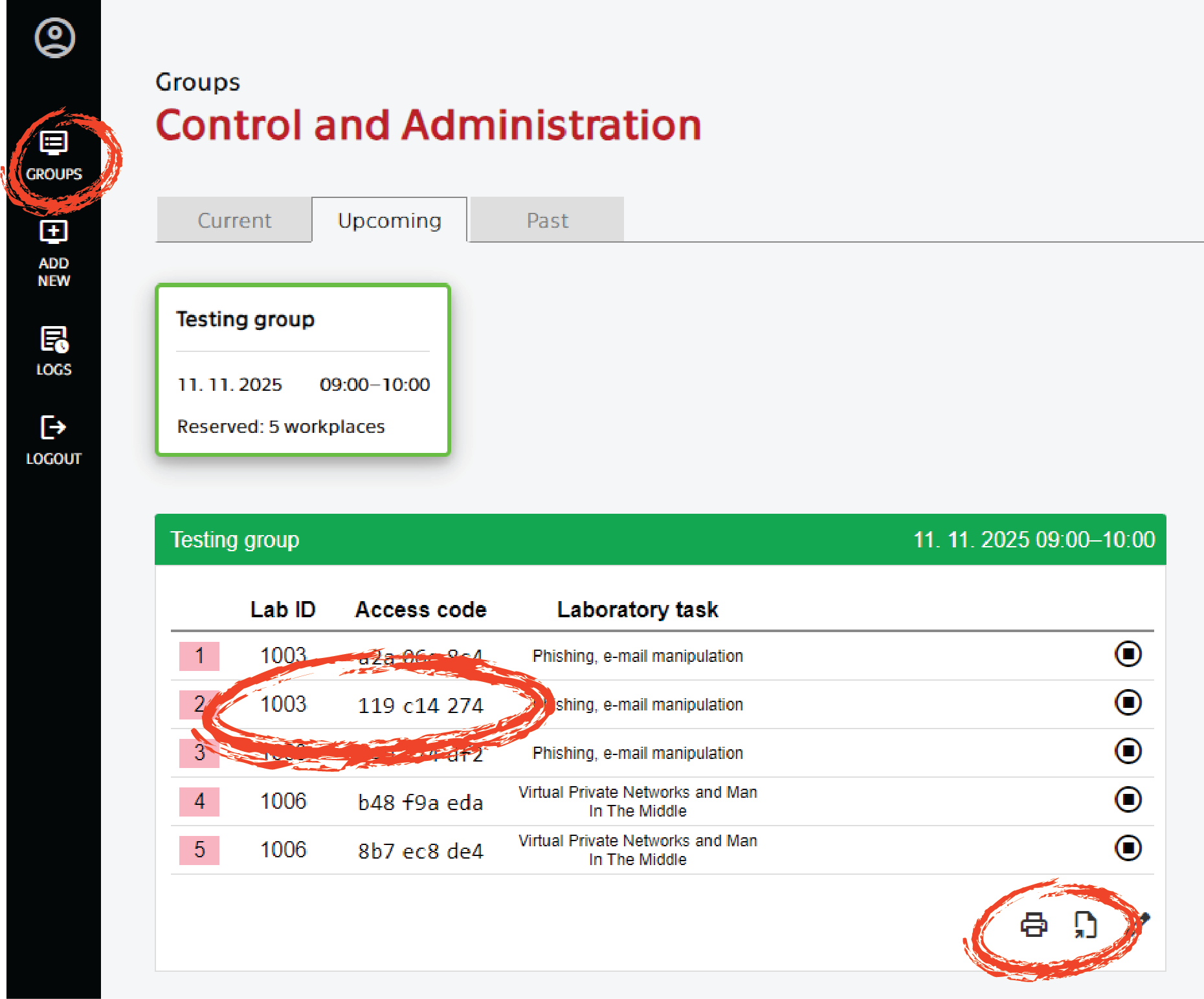
Group management (GROUPS option) allows:
Creating a new reservation (ADD NEW option) is performed in 4 steps:
Reserved tasks are only available to users for the scheduled time period. They are available to users (typically students) under the lab assignment code and access code, which is unique for each user. Lab users (typically students) do not register in the reservation system!
User login details
Lab ID and Access code for individual users can be viewed and exported from the overview of created groups. These codes can be exported to PDF (XLSX export is under development). The distribution of these access codes to users (usually students) is the responsibility of the registered user who made the reservation (usually a teacher).